Ten-minute setup

Set it once. Learn every day.

Follow real iPhone screens to build a daily WallCab automation. No app, login, background tracking, or subscription.

6 illustrated screens · beginner friendly
Shortcut download coming soonCreate my wallpaper address

The short version

The complete setup at a glance.

You will create one personal automation with only two actions: download today's WallCab image, then set it as your Lock Screen. The detailed screens below walk through every tap.

  1. 01 / 05

    Copy your wallpaper address

    Use the configurator, choose your learning interests, a built-in style or private custom background, iPhone size, and optional personal note, then copy the API address it creates.

  2. 02 / 05

    Start a personal automation

    Open Shortcuts, tap Automation, tap +, and choose Time of Day.

  3. 03 / 05

    Set it to run daily

    Choose a morning time, select Daily and Run Immediately, then tap Next.

  4. 04 / 05

    Add the download action

    Create a new shortcut inside the automation, add Get Contents of URL, and paste your WallCab address.

  5. 05 / 05

    Set and test the wallpaper

    Add Set Wallpaper Photo, choose Lock Screen, disable previews and automatic image effects, then run it once.

Follow the screens

Build it on your iPhone, tap by tap.

Apple occasionally changes small labels between iOS versions. If one button looks slightly different, follow the action name shown in bold. The workflow is still the same.

Before opening Shortcuts
  1. Open the WallCab configurator.
  2. Choose your interests, style, iPhone, and optional note.
  3. Tap Copy address and keep it on your clipboard.
  1. Screen 01 / 06

    Choose the Time of Day trigger

    Start in Apple’s Shortcuts app. This creates an automation that can run without you opening WallCab.
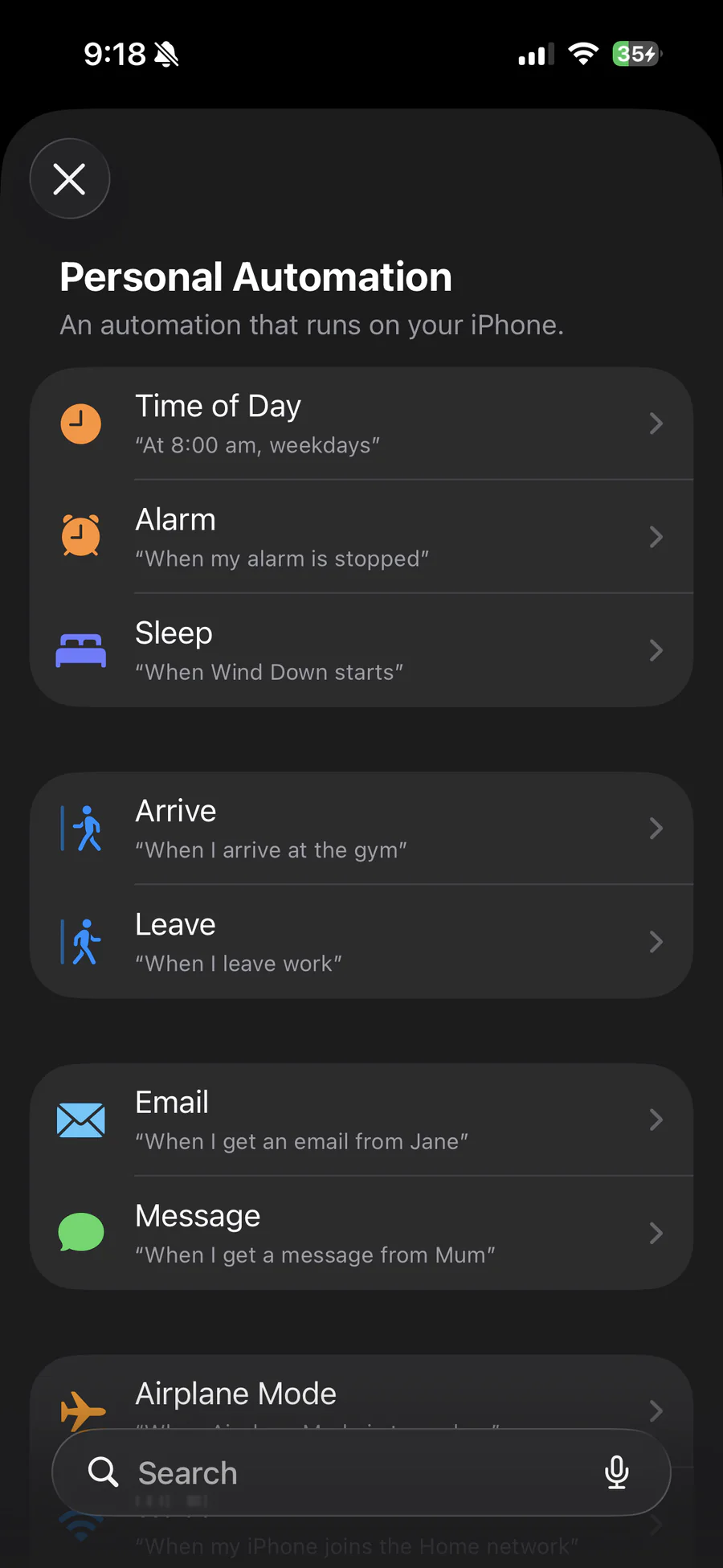
    1. Tap Automation in the bottom navigation.
    2. Tap the + button in the top-right corner. If this is your first automation, tap New Automation instead.
    3. Choose Create Personal Automation if iOS asks which kind you want.
    4. Tap Time of Day.
    Apple Shortcuts Personal Automation screen with Time of Day at the top
    Choose Time of Day from the Personal Automation screen.
  2. Screen 02 / 06

    Pick the daily schedule

    Choose when the new wallpaper should appear. A morning time is easiest because the lesson is ready before you begin the day.
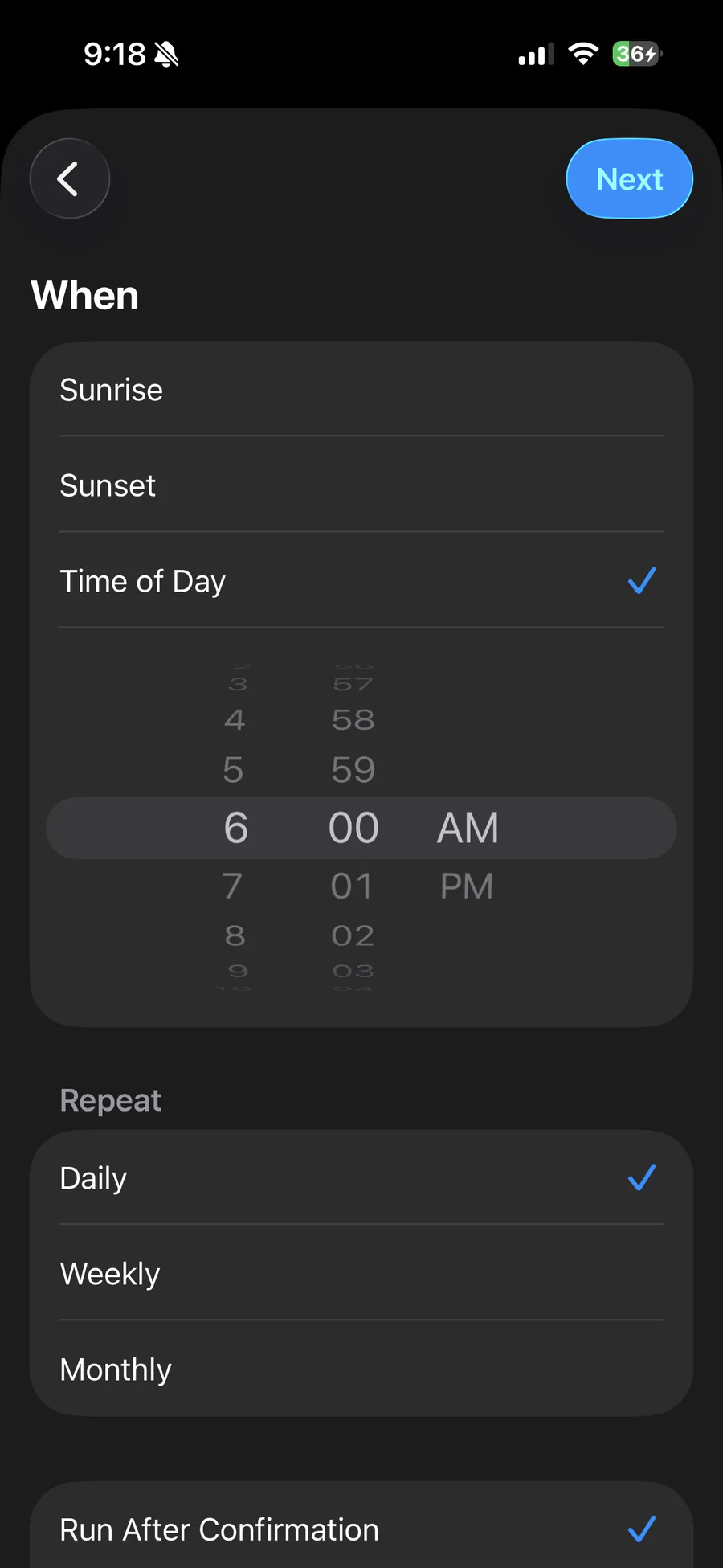
    1. Select Time of Day and choose your preferred hour.
    2. Under Repeat, select Daily.
    3. Scroll down and select Run Immediately.
    4. Leave Notify When Run off if you do not want a daily Shortcuts notification.
    5. Tap Next.
    Apple Shortcuts schedule screen showing Time of Day and Daily selected
    Choose a time and Daily, then scroll down to select Run Immediately.
  3. Screen 03 / 06

    Add “Get Contents of URL”

    After the schedule screen, tap Create New Shortcut. The next action will download the PNG from your personal WallCab address.
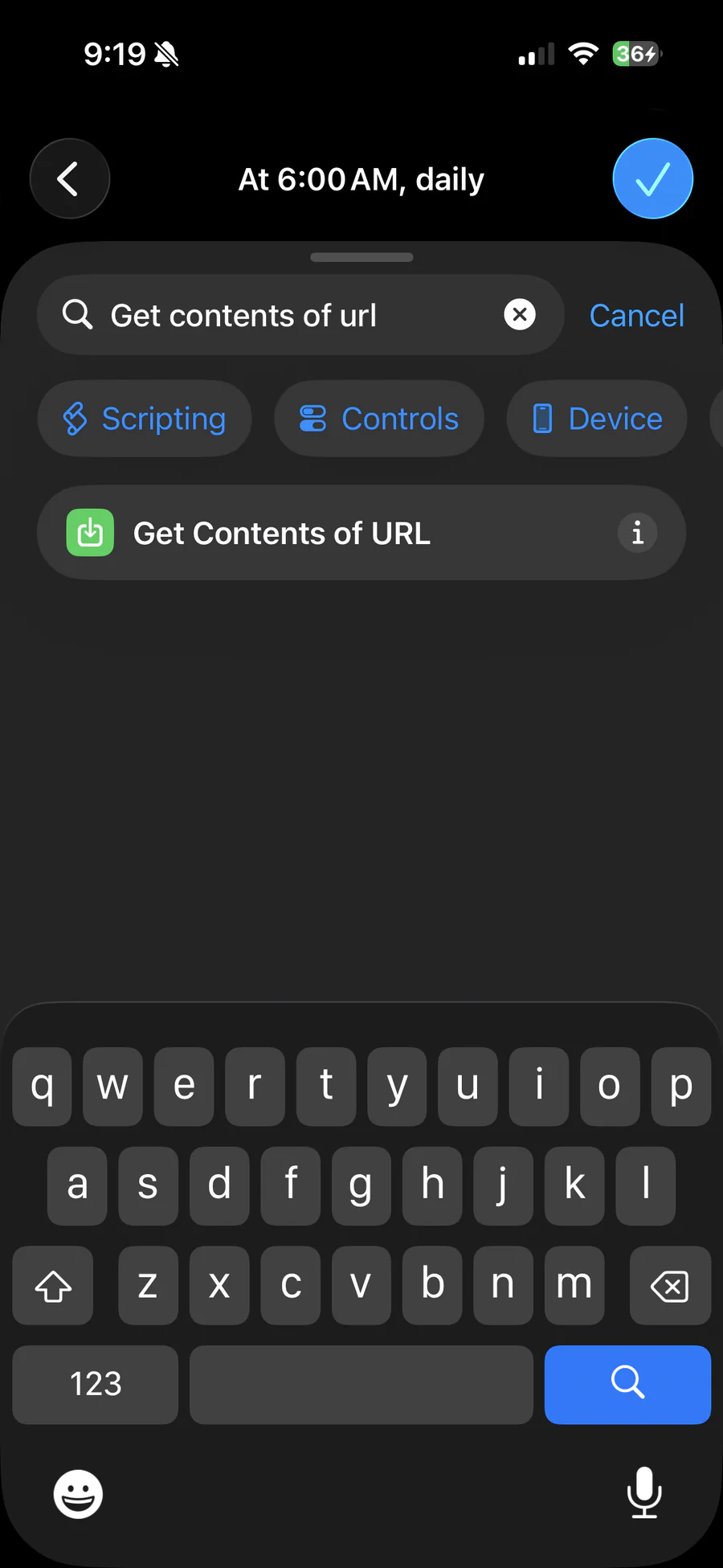
    1. Tap the Search Actions field.
    2. Type Get Contents of URL.
    3. Tap the green Get Contents of URL result.
    4. A new action card will appear in the editor.
    Shortcuts action search showing the Get Contents of URL result
    Search for and select the green Get Contents of URL action.
  4. Screen 04 / 06

    Paste your WallCab address

    This address carries your learning interests, visual style, iPhone size, custom background ID, and optional personal note.
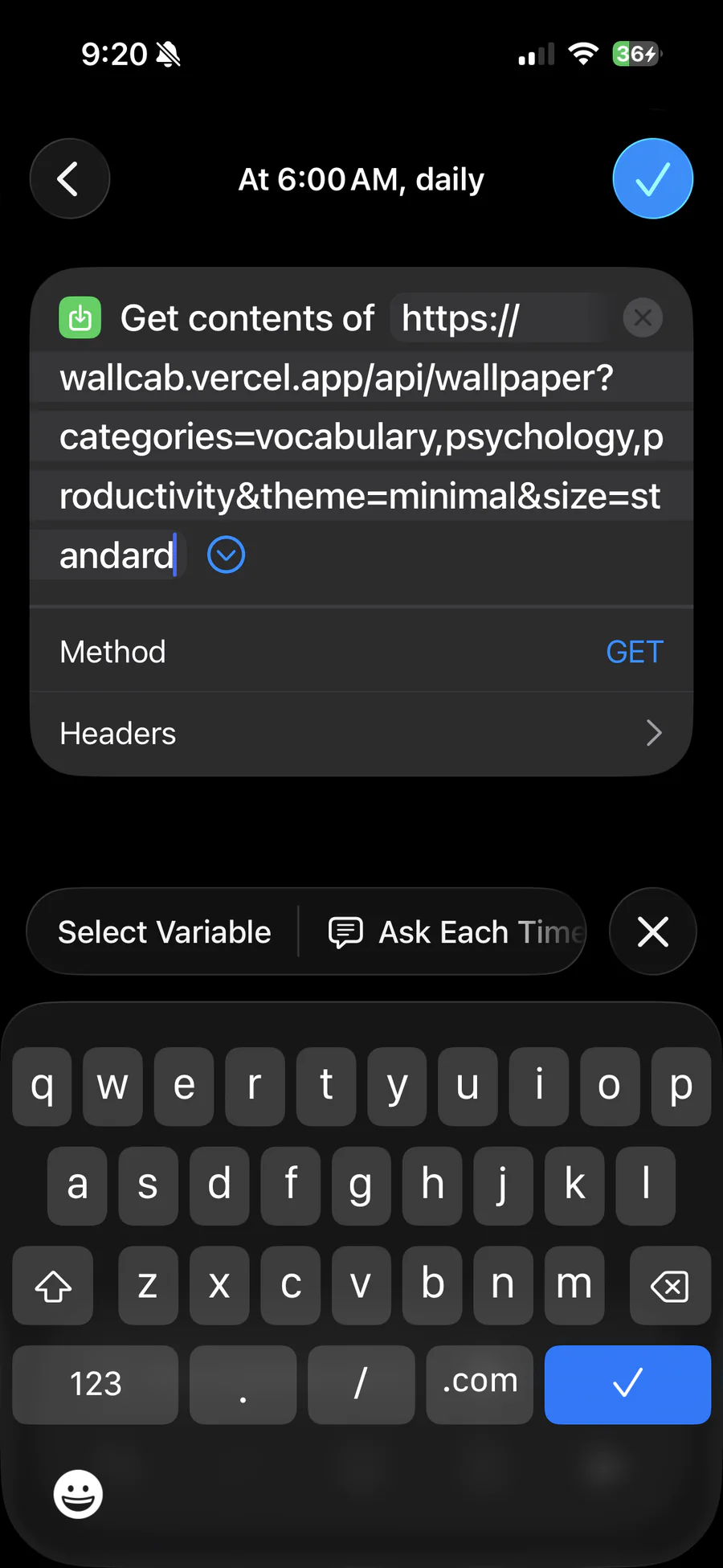
    1. Tap the blue URL placeholder inside the action.
    2. Paste the complete address copied from the WallCab configurator.
    3. Check that the address begins with https:// and contains /api/wallpaper.
    4. Keep Method set to GET. You do not need headers or a request body.
    Get Contents of URL action with a WallCab wallpaper API address pasted into it
    Paste the entire wallpaper address and leave the request method as GET.
  5. Screen 05 / 06

    Add “Set Wallpaper Photo”

    The first action downloads the image. This second action tells iOS where to place it.
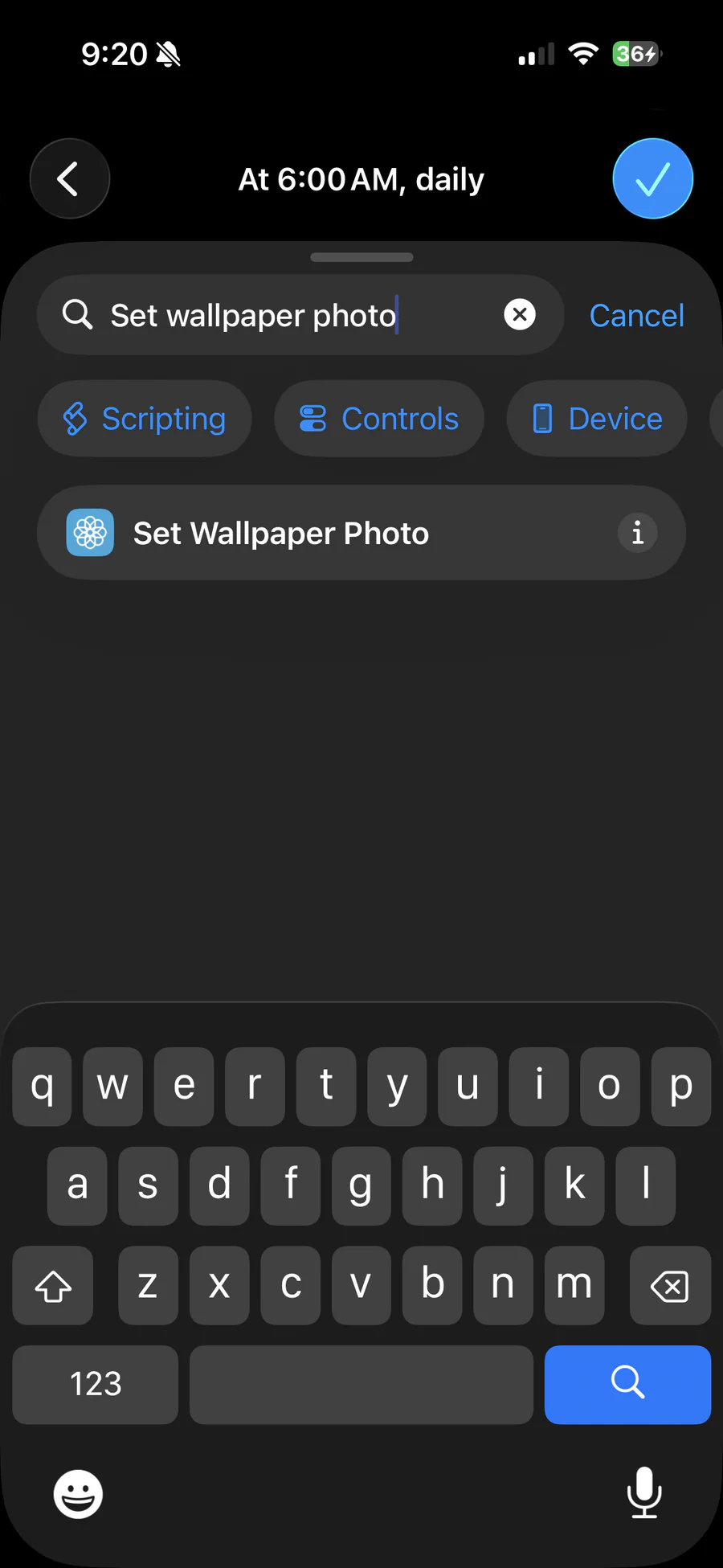
    1. Tap Search Actions beneath the first action.
    2. Type Set Wallpaper Photo.
    3. Tap the blue Set Wallpaper Photo result.
    4. If the new action does not automatically use Contents of URL, tap its photo field and choose Contents of URL.
    Shortcuts action search showing the Set Wallpaper Photo result
    Search for and select Set Wallpaper Photo.
  6. Screen 06 / 06

    Choose the Lock Screen and test it

    Finish the wallpaper action carefully. These settings prevent daily prompts, unwanted crops, and extra blur.
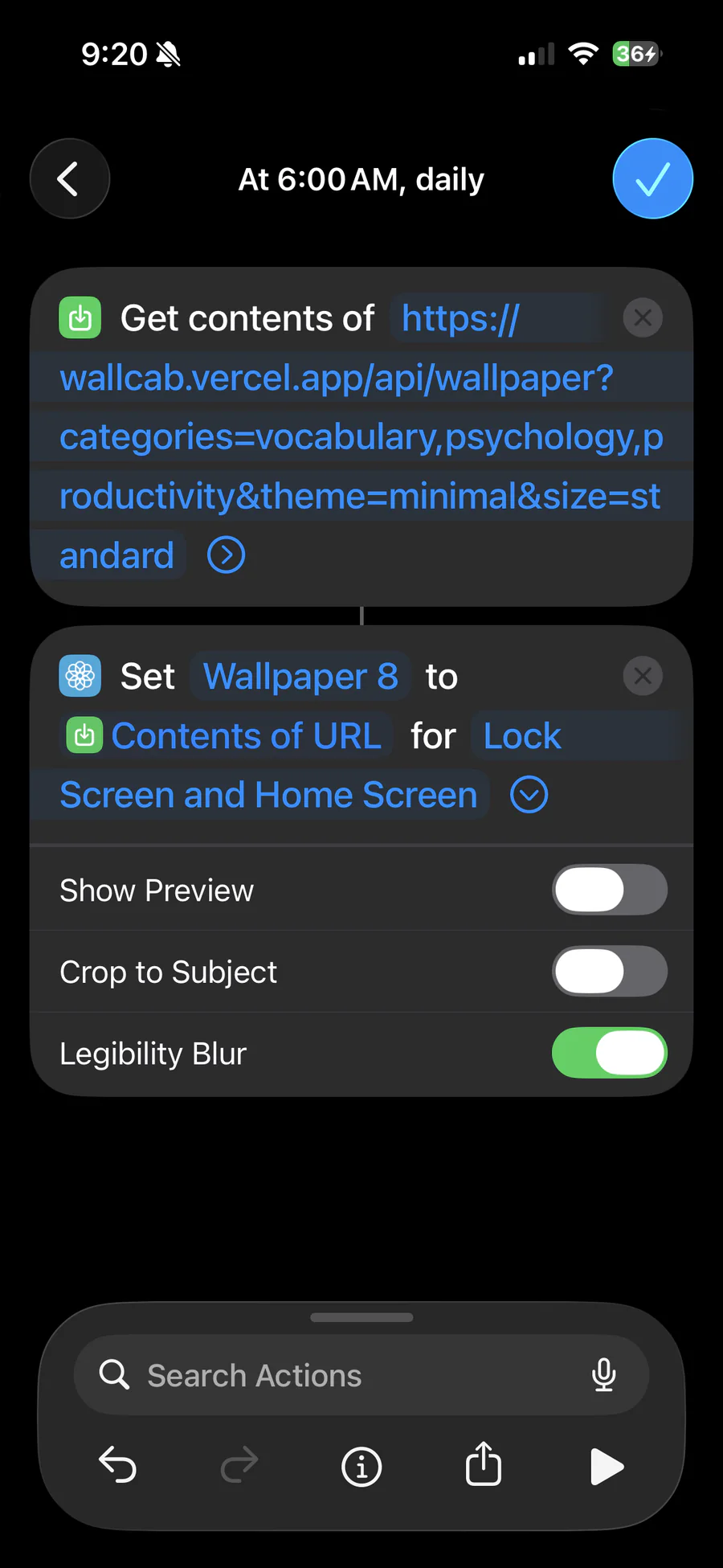
    1. Tap the blue wallpaper name and select the Lock Screen you want WallCab to update.
    2. Choose Lock Screen only unless you also want WallCab on your Home Screen.
    3. Turn Show Preview off.
    4. Turn Crop to Subject off.
    5. Turn Legibility Blur off.
    6. Tap the play button once. Allow network and wallpaper permissions if iOS asks.
    7. When the wallpaper changes successfully, tap the blue checkmark to save.
    Completed WallCab automation with Get Contents of URL and Set Wallpaper Photo actions
    Use Lock Screen, disable all three image options, test once, then save.

Final check

You are done when these 4 things are true.

  • The automation is enabled and set to Run Immediately.
  • Get Contents of URL contains your complete WallCab address.
  • Set Wallpaper Photo receives Contents of URL.
  • A manual test changes the intended Lock Screen.

If something looks wrong

Quick fixes.

It asks before running every day

Edit the automation’s schedule and change Run After Confirmation to Run Immediately. Also confirm Show Preview is off in Set Wallpaper Photo.

The wallpaper looks blurred or cropped

Open Set Wallpaper Photo and turn Legibility Blur and Crop to Subject off.

Nothing happens when you test it

Run the automation once inside Shortcuts and accept the network and wallpaper permissions. Then try the play button again.

The wrong learning topic appears

That can be expected. When you select several interests, WallCab chooses one of them for the UTC day and rotates them over time.

Good to know

Before you automate.

Does WallCab need an app?

No. A standard Apple Shortcut downloads and sets the image automatically.

Does the Shortcut expose my personal data?

The URL includes your selected learning interests, visual choice, device size, and any personal note you add. A custom background adds an unguessable image ID, never its deletion secret. Do not put sensitive information in the optional note because it is visible in the URL.

What if the download button is unavailable?

Use the detailed screenshot guide on this page. It builds the same two-action automation directly in Apple Shortcuts.

Why should Legibility Blur be off?

WallCab already composes a contrast gradient behind its lesson. Apple’s additional blur can hide the photograph and soften the typography.

Can I change my choices later?

Yes. Return to the WallCab configurator, make new choices, copy the new address, and replace the URL inside Get Contents of URL.